
Touch-Typing Finger Map
Every key, every finger — hover, tap, or click a finger below to explore it.
Quick answer
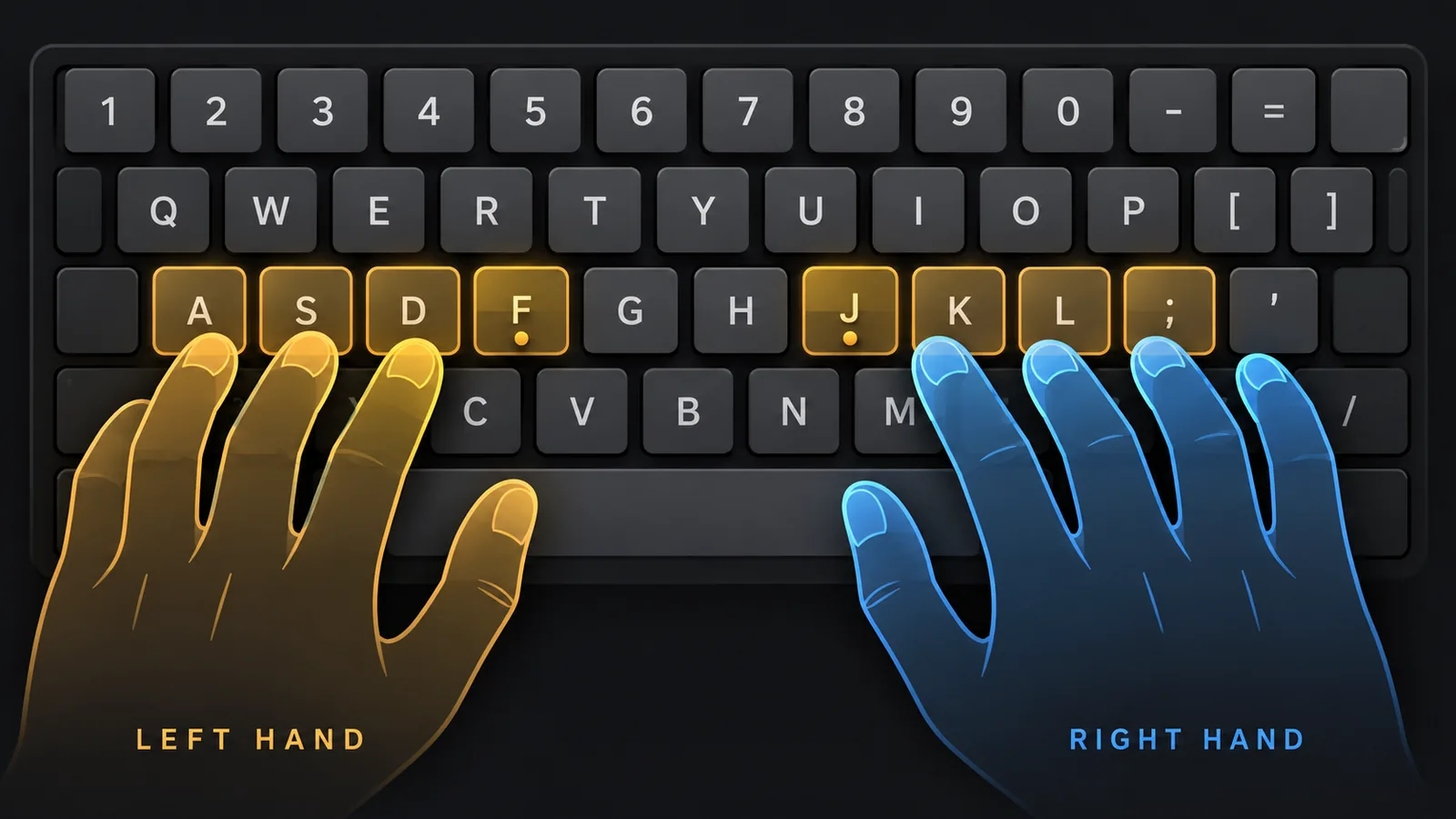
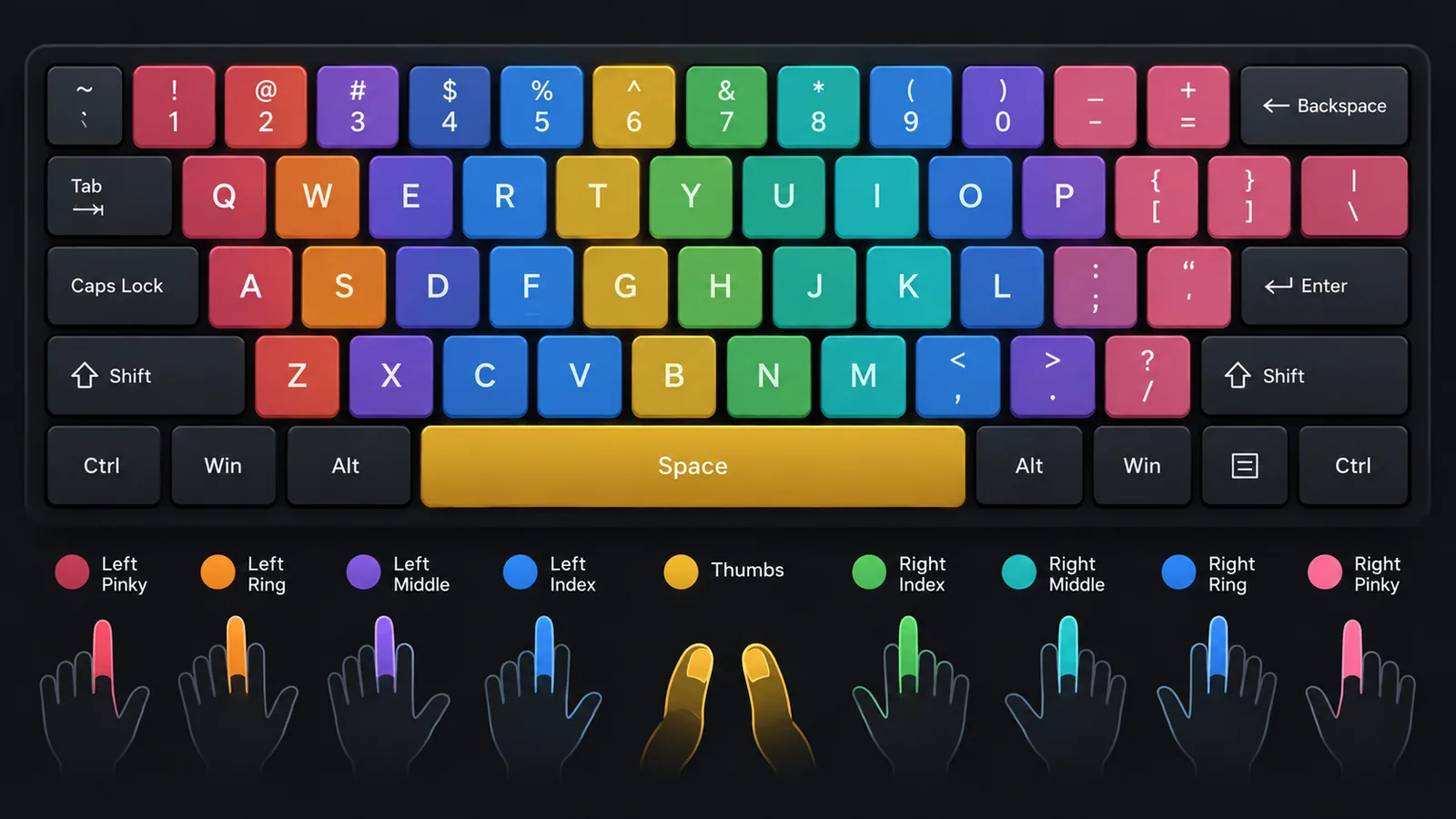
Each finger owns a fixed column of keys radiating out from a home-row resting position (left hand: A S D F, right hand: J K L ;), and returns there after every reach. The index fingers cover two columns each rather than one, since the keyboard's middle has more letters than there are middle fingers. Explore the exact assignment below, or jump straight to the full list.
Interactive finger map
Hover over a key with a mouse, tap it on a touchscreen, or tab to it with a keyboard — the hand diagram lights up the exact finger responsible. Click a finger in the legend to see every key it owns at once.
Hover, tap, or click a finger below to see which keys it owns.
Home row and the F/J bumps
Home row is the resting position every reach starts and ends at: left fingers on A S D F, right fingers on J K L ;, both thumbs on the space bar. On almost every physical keyboard, F and J carry a small raised bump — that's how your index fingers confirm home row by touch alone, without your eyes ever leaving the screen. Every other key on the board is one short reach away from a home-row key, then a return — never a full hand repositioning.
The full finger-to-key list
| Finger | Keys |
|---|---|
| Left pinky | 1 Q A Z |
| Left ring | 2 W S X |
| Left middle | 3 E D C |
| Left index | 4 5 R T F G V B |
| Right index | 6 7 Y U H J N M |
| Right middle | 8 I K , |
| Right ring | 9 O L . |
| Right pinky | 0 P ; / |
| Thumbs | Space bar |
Why this exact system
This isn't an arbitrary convention — it's built to minimize how far your hands travel across ordinary English text, and to offload key location to muscle memory instead of vision. A reach that's stored as a movement pattern, rather than a conscious look-find-decide-move sequence, executes faster and far more consistently. The specific home-row layout in use today traces back to court stenographer Frank McGurrin, who popularized typing without looking in 1888 and proved it was faster than hunt-and-peck in a public contest — the same home position he used is still the standard taught worldwide.
Shift, numbers, and punctuation
Shift is typed with the pinky on the opposite hand from the letter being capitalized: right Shift for a left-hand letter, left Shift for a right-hand letter. This keeps one hand fully free to hold Shift while the other hand's normal finger reaches the letter it already owns — nothing about the letter's own finger assignment changes.
Numbers extend the same column logic upward from the top row — each number is typed by the same finger as the letter directly below it (1 and Q both belong to the left pinky, for example). Punctuation on the base layer (, . / ;) belongs to the right hand's outer fingers, in the same column pattern as the letters beside them; shifted punctuation (! ? : and similar) is typed the same way as a shifted letter — opposite-hand Shift, plus the key's normal finger.
Printable reference
Two static reference charts, useful to print or pin up next to a keyboard.
How to actually learn it
- Home row alone, left hand, until it's automatic without looking.
- Home row alone, right hand, same standard.
- Both hands combined on home row.
- Top row, then bottom row, each hand separately before combining.
- Numbers, then real words, then full sentences with punctuation.
That's the exact order HeroTyping's typing lessons run, with a live hand diagram fading out as you stop needing it. For the day-by-day version of this plan, see how to type without looking at the keyboard, or the full technique walkthrough at how to touch type.
Common mistakes
Using one finger for a key that belongs to another
It feels faster in the moment and is the single biggest reason self-taught typists stall around 30–40 WPM — every keystroke stays a short, predictable reach only if the same finger always owns the same key.
Not returning to home row after every reach
The resting position is what makes every subsequent reach predictable and short. Skipping it turns touch typing back into hunting, just with fewer eyes on the keyboard.
Looking down to confirm before pressing
The glance costs more time than the keystroke it was checking, and it delays exactly the muscle memory the F/J bumps exist to build.
Learning the whole keyboard before any one row is automatic
Home row first, fully automatic, before adding the top row; top row automatic before the bottom row. Skipping ahead means practicing on a foundation that isn't solid yet.
Ready to put it into practice? Start with lesson one, or take a typing test to see where you stand today.
FAQ
Which finger types the Shift key?
The pinky on the opposite hand from the letter you're capitalizing — right pinky (Shift) for a left-hand letter, left pinky (Shift) for a right-hand letter. This keeps one hand free to hold Shift while the other hand's normal finger reaches the letter, rather than contorting one hand to do both.
Do the index fingers really cover more keys than the others?
Yes — each index finger owns two columns (for example, the left index covers both R/F/V and T/G/B) instead of one, because the middle of the keyboard has more letter columns than there are middle fingers to cover them. It's a genuine asymmetry in the standard system, not an error in a chart.
Why do F and J have a small bump?
So your index fingers can find home row by touch alone, without looking down. It's a deliberate, physical anchor point — nearly every keyboard has it, and it's the single most useful physical feature for learning to type without looking.
Should I memorize this chart before I start practicing?
No — memorizing a chart and building muscle memory are different processes, and the second one only happens through repetition at the keyboard. Use the interactive map above to check yourself occasionally, but spend most of your time actually typing, ideally through a structured, ordered progression rather than the whole keyboard at once.
Sources & references
Last updated 2026-09-25.